How to Open a Gate with UniFi License Plate Recognition
Read plates with a UniFi AI LPR, run Protect and Access on a CloudKey+, and let the Access Gate Hub's operator relay open the gate for plates on the allow-list.
Parts associated
On this page
Why the AI LPRParts and costPower and network planMount the AI LPRWire the Gate HubSet up the CloudKey+, Protect and AccessBuild the allow-listTestTroubleshootingDocumentsSourcesFAQsThe supported way to open a gate from a plate read is UniFi Access License Plate Unlock. A UniFi AI camera reads the plate, Access checks it against the plates assigned to users, and the Gate Hub closes its dry operator relay into the gate operator's open input. Protect and Access must run on the same console; the CloudKey+ runs both. (S1, S6)
Why the AI LPR
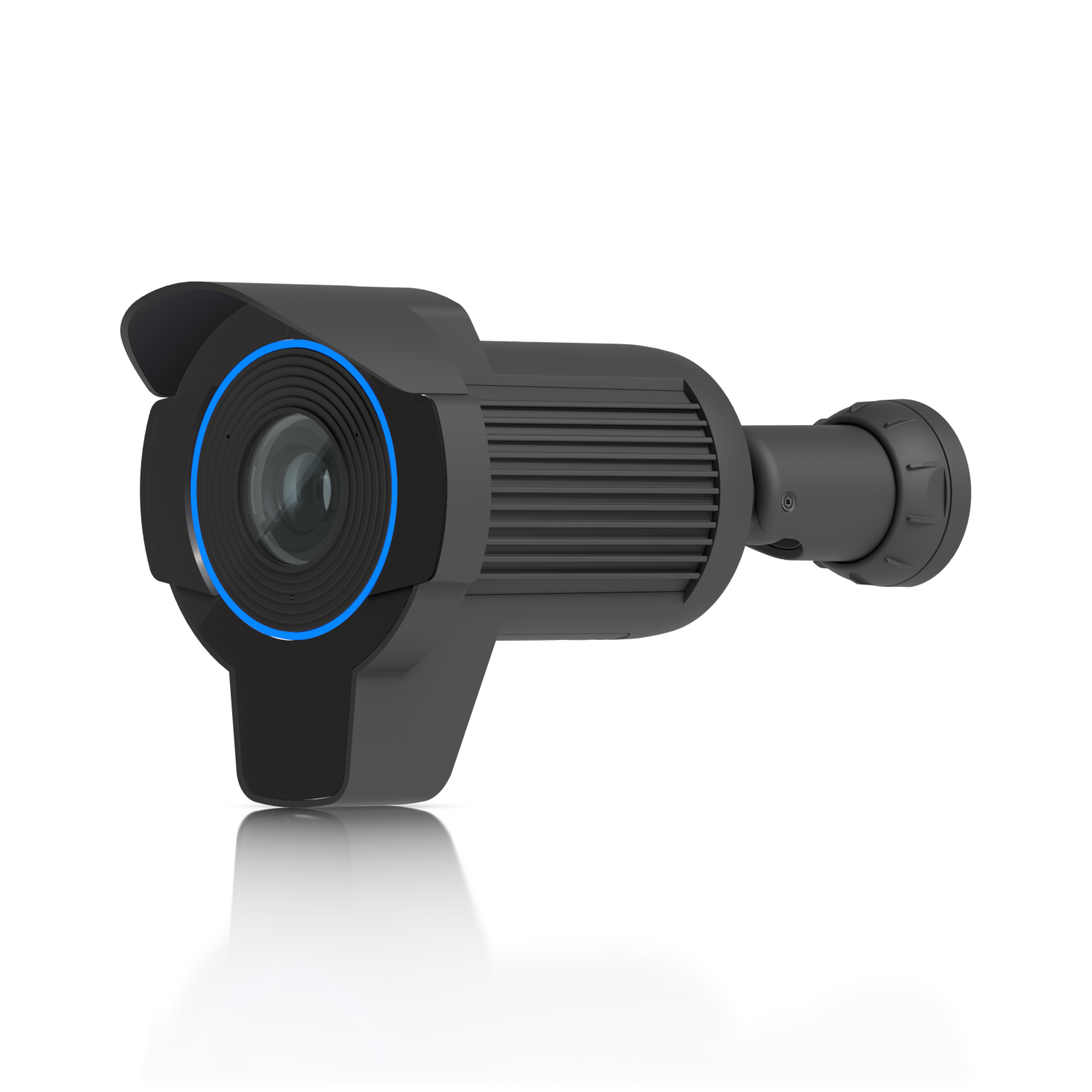
Ubiquiti built the AI LPR for dedicated plate reads at speed and at night, with a glare-cut filter for headlights. (S2, S3) It is on the License Plate Unlock camera list. (S1)
| Spec | Result |
|---|---|
| Purpose | Dedicated license plate recognition (S2, S3) |
| Zoom | 3x optical (S4) |
| Night | LPR Night Vision for reflective plates (S2) |
| Mode | LPR Dedicated turns off other detections (S2) |
Parts and cost
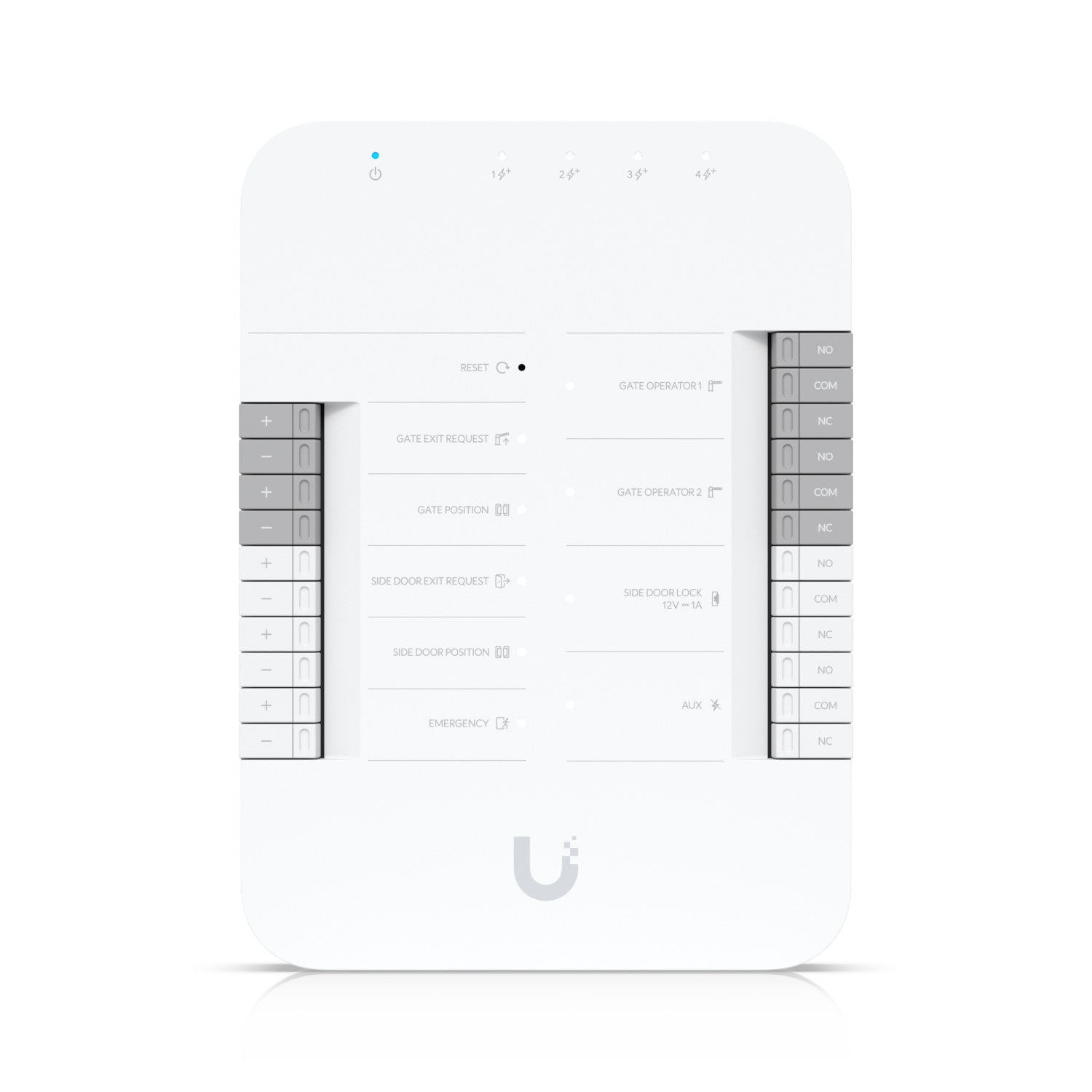
The "relay" is built into the Gate Hub: two dry operator relays rated 30 V DC, 1 A, plus a dry AUX relay. No separate relay module is needed. (S5)
| Item | Qty | MSRP | Average Partner Price | Source |
|---|---|---|---|---|
| UniFi AI LPR (UVC-AI-LPR) | 1 | $499.00 | $499.00 | Ubiquiti Store (S11) |
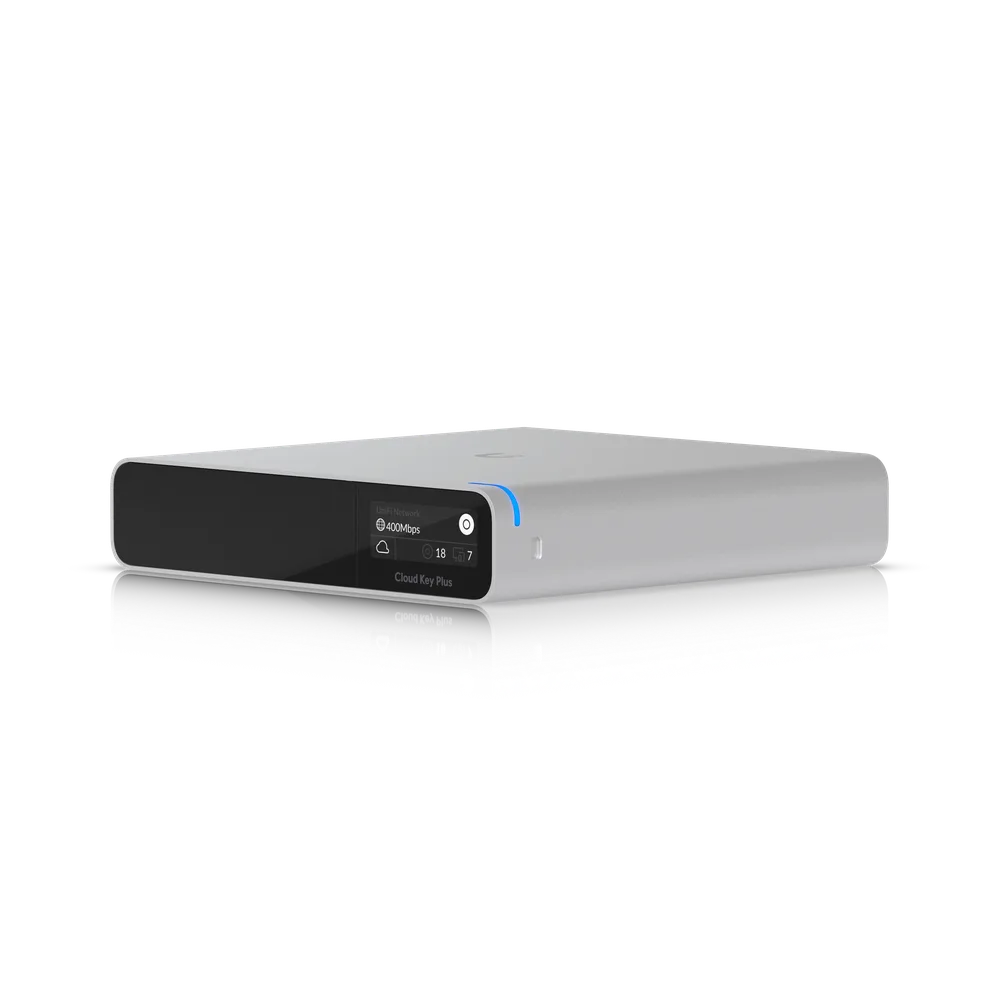
| CloudKey+ (UCK-G2-PLUS), 1 TB | 1 | $199.00 | $199.00 | Ubiquiti Store (S6) |
| Access Gate Hub (UA-Hub-Gate) | 1 | $279.00 | $279.00 | Ubiquiti Store (S12) |
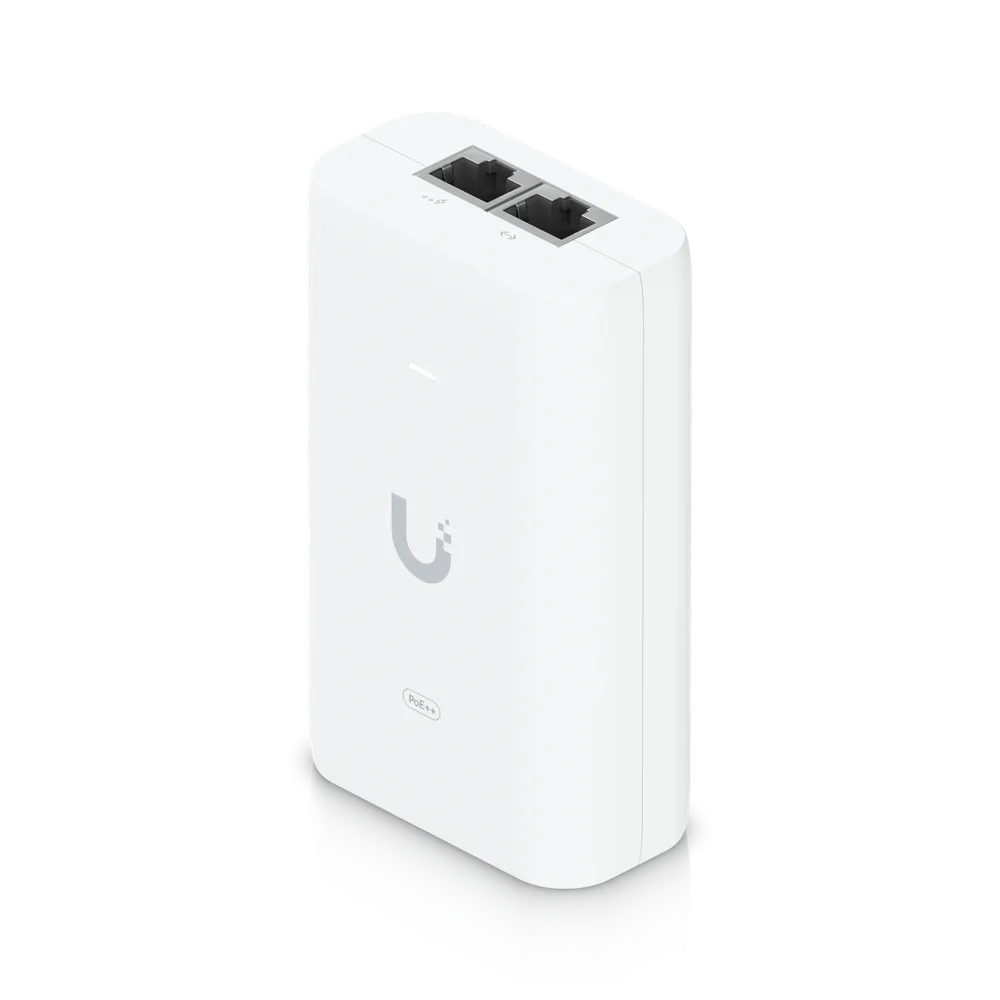
| UniFi PoE++ Adapter (60W) for the Gate Hub | 1 | $29.00 | $29.00 | Ubiquiti Store (S7) |
| Build total | $1,006.00 | $1,006.00 | Partner total |
This assumes an existing UniFi network with a switch port and internet for the CloudKey+. Outdoor Cat6, a waterproof junction box for the Gate Hub, the gate operator and its entrapment protection are not included.
Power and network plan
| Spec | Result |
|---|---|
| Gate Hub input | PoE++ is its power method; 1 × PoE++ in, 50 V DC, 1 A; max 22 W without PoE out, 60 W with PoE out (S5) |
| Gate Hub outputs | 4 × PoE+ out, 30 W per port, 55 W aggregate (S5) |
| AI LPR | PoE+, max 25.5 W (S4) |
| Camera load on the hub | 25.5 W, under the 30 W port limit and 55 W aggregate (S4, S5) |
| CloudKey+ | PoE or USB-C 9 V 2 A, max 12.95 W, 0 to 35 °C, indoor (S6) |
| Gate Hub environment | -30 to 60 °C; indoor only, outdoors in a waterproof junction box (S5) |
Mount the AI LPR
- Pick the spot. Mount as close to the plates as possible, ideally beside or above the lane where cars stop at the gate. (S2)
- Height. 5 m (16 ft) maximum. (S2)
- Distance. 12 m (39 ft) capture distance. For stopped or slow traffic at a gate, up to 15 m works. (S2)
- Angle. Keep horizontal and vertical angle under 25°, under 15° for fast traffic. Stopped traffic tolerates up to 30°. (S2)
- Frame the stop line. Aim at the spot where the car stops before the gate, so the whole vehicle sits at least 90% inside the unlock zone. (S1)
Wire the Gate Hub
| Terminal | Connects to |
|---|---|
| PoE++ in | U-PoE++ adapter PoE port; adapter LAN port to your UniFi switch (S5, S7) |
| PoE+ out 1 | AI LPR (S1, S5) |
| Gate operator relay (dry) | Gate operator's open / momentary open input (N.O. dry contact) and its common (S5) |
| Gate position input | Operator's gate-closed limit or a gate contact (optional) (S5) |
| Gate exit request input | Exit loop or free-exit dry contact (optional) (S5) |
| AUX relay (dry) | Optional siren or strobe (S5) |
- Check the operator input. Confirm the operator takes a dry momentary contact on its open input. The hub relay is rated 30 V DC, 1 A; never switch line voltage with it. (S5)
- Land the relay. Wire one of the hub's dry gate operator relays to the operator's open and common terminals, following the operator manual for its terminal names. (S5)
- Mount the hub. DIN-rail it inside a waterproof junction box near the operator. (S5)
- Entrapment protection. Keep the operator's photo eyes and edges in place. Ubiquiti requires them on motorized gates. (S1)
Set up the CloudKey+, Protect and Access
- UniFi OS 4.4.9 or later (S1)
- Access 4.1.15 or later; Protect 6.2 or later (S1)
- Gate Hub firmware 2.1.1.0 or later; AI camera firmware 5.1.185 or later (S1)
- Protect and Access installed on the same CloudKey+ (S1, S6)
- Adopt. Adopt the Gate Hub in Access and the AI LPR in Protect. Let each update. (S1, S2)
- LPR Night Vision. In Protect, AI LPR › Settings, turn on LPR Night Vision for reflective plates. (S2)
- LPR Dedicated. Optionally turn on LPR Dedicated under Recording Settings, so all camera resources go to plates. (S2)
- Zoom. Use the AI LPR's optical zoom to fill the frame with the stop area. (S2)
- Pair to the Gate. Access › Devices › UA Hub Gate › Locations › Gate › Paired Devices › Manage. Select the AI LPR and save. (S1)
- Turn on unlock. Open the paired camera › Settings › Access Method › enable License Plate Unlock. (S1)
- Unlock zone. Edit the zone. Choose "Vehicle with License Plate Number" or "Only the License Plate Number". (S1)
- Record on unlock. Turn on Record Video on Door Unlock, then Apply Changes. (S1)
Build the allow-list
- Add plates to users. Access › People › user › Settings › Credentials › License Plate › +. Enter the plate and click Add. (S1)
- Multiple vehicles. A user can hold several plates. (S1)
- Cooldown. Set the License Plate Detection Cooldown so one car sitting in the zone doesn't re-fire the gate. (S1)
Camera not on the hub
If a camera can't plug into the hub, Ubiquiti's answer is a custom alarm in Protect Alarm Manager: trigger on a known license plate, scope it to that camera, and add the gate unlock or a webhook action. (S8, S9) The webhook payload carries the plate and whether it's known, so a third-party relay or controller can act on it. (S10) Native License Plate Unlock is the simpler, supported path.
Test
- Drive an allow-listed car to the stop line by day: gate opens, unlock video recorded
- Repeat at night with headlights on
- Drive an unlisted plate: plate logged, gate stays shut
- Sit in the zone past the cooldown: gate doesn't re-cycle
- Open from the Access app: relay clicks and gate opens
- Photo eyes and edges stop and reverse the gate
Troubleshooting
| Symptom | Likely cause | Fix |
|---|---|---|
| Plate reads by day, misses at night | LPR Night Vision off, or angle too steep | Turn on LPR Night Vision; move the camera closer and under 25° (S2) |
| License Plate Unlock missing in camera settings | Camera not on a hub PoE port or not paired to the Gate | Plug it into the hub; pair under Paired Devices (S1) |
| Plate logged but gate doesn't open | Plate not assigned to a user, or outside the user's schedule | Add the plate under the user's credentials (S1) |
| Relay clicks, gate doesn't move | Wrong operator terminal, or operator wants a powered input | Check the operator manual; use its dry open input (S5) |
| Gate reopens with a cooldown set | Another unlock method fired | Cooldown covers repeat plate reads only (S1) |
| Hub reboots when the camera starts IR | Hub not on a true PoE++ feed | Power the hub from the PoE++ adapter (S5, S7) |
Gate work changes how a motorized gate behaves; test the safety devices after every change.
Documents
Sources
- Ubiquiti Help Center: Configuring License Plate Unlock in UniFi Accesshelp.ui.com · pulled Oct 25, 2026
- Ubiquiti Help Center: AI-LPR Setup in UniFi Protecthelp.ui.com · pulled Oct 25, 2026
- Ubiquiti Help Center: Advanced AI Features in UniFi Protecthelp.ui.com · pulled Oct 25, 2026
- UniFi AI LPR tech specstechspecs.ui.com · pulled Oct 25, 2026
- UniFi Gate Hub tech specstechspecs.ui.com · pulled Oct 25, 2026
- Ubiquiti Store, CloudKey+ (UCK-G2-PLUS)store.ui.com · pulled Oct 25, 2026
- Ubiquiti Store, UniFi PoE++ Adapter (60W)store.ui.com · pulled Oct 25, 2026
- Ubiquiti Help Center: UniFi Alarm Managerhelp.ui.com · pulled Oct 25, 2026
- Ubiquiti Community: LPR cameras paired to a Gate Hubcommunity.ui.com · pulled Oct 25, 2026
- Ubiquiti Community: UniFi LPR detection, event trigger via webhookamplifi.community.ui.com · pulled Oct 25, 2026
- Ubiquiti Store, AI LPRstore.ui.com · pulled Oct 25, 2026
- Ubiquiti Store, Access Gate Hubstore.ui.com · pulled Oct 25, 2026
FAQs
Do I need a separate relay?
No. The Gate Hub has two dry operator relays rated 30 V DC, 1 A. (S5)
Does the CloudKey+ run Access as well as Protect?
Yes. It runs Network, Protect, Access, Talk and Connect, and both apps must be on the same console. (S1, S6)
Can I use a Shelly or other webhook relay instead?
Yes, through an Alarm Manager webhook on a license plate trigger. It isn't the native path and gives you no Access user logs. (S8, S10)
How far from the stop line should the AI LPR be?
Within 12 m, up to 15 m for stopped cars, at 5 m height or lower and under 25°. (S2)
Did this page help you?
Thanks for the feedback.