Ubiquiti PtP and PtMP setup: airMAX, UniFi Building Bridge and Wave
Plan, bench-configure, mount, aim and verify Ubiquiti airMAX wireless links and the UniFi Building Bridge, from the truck to the pole.
Parts associated

On this page
PtP vs PtMP: which one do you need?Picking hardwarePlan the link before you climbBench configuration (airMAX / airOS 8)Mounting and aimingVerify the linkTroubleshootingTools and parts listSourcesFAQsA wireless bridge is a Cat6 cable through the air. This guide covers airMAX point-to-point (PtP) and point-to-multipoint (PtMP) links plus the UniFi Building Bridge (UBB). (S1, S2, S5)
PtP vs PtMP: which one do you need?
| Spec | Result |
|---|---|
| Point-to-Point (PtP) | One radio talks to exactly one other radio. Links two buildings, a gate camera or a far IDF back to the head end. Turn PTP Mode On at both ends. (S1) |
| Point-to-Multipoint (PtMP) | One Access Point (often a sector antenna) serves several stations. Set PTP Mode Off on the AP and every station. (S2) |
| Rule of thumb | Use PtP whenever there is only one far end. Every station on a PtMP AP shares that AP's airtime and capacity. (S2) |
Picking hardware
| Use case | Typical gear | Notes |
|---|---|---|
| Short PtP or PtMP stations | NanoBeam AC, LiteBeam AC | Small airMAX AC CPEs |
| Longer PtP | PowerBeam AC | Bigger dish, more gain |
| PtMP head end | Rocket 5AC Prism + sector antenna, or LiteAP AC | AP side of a multipoint link |
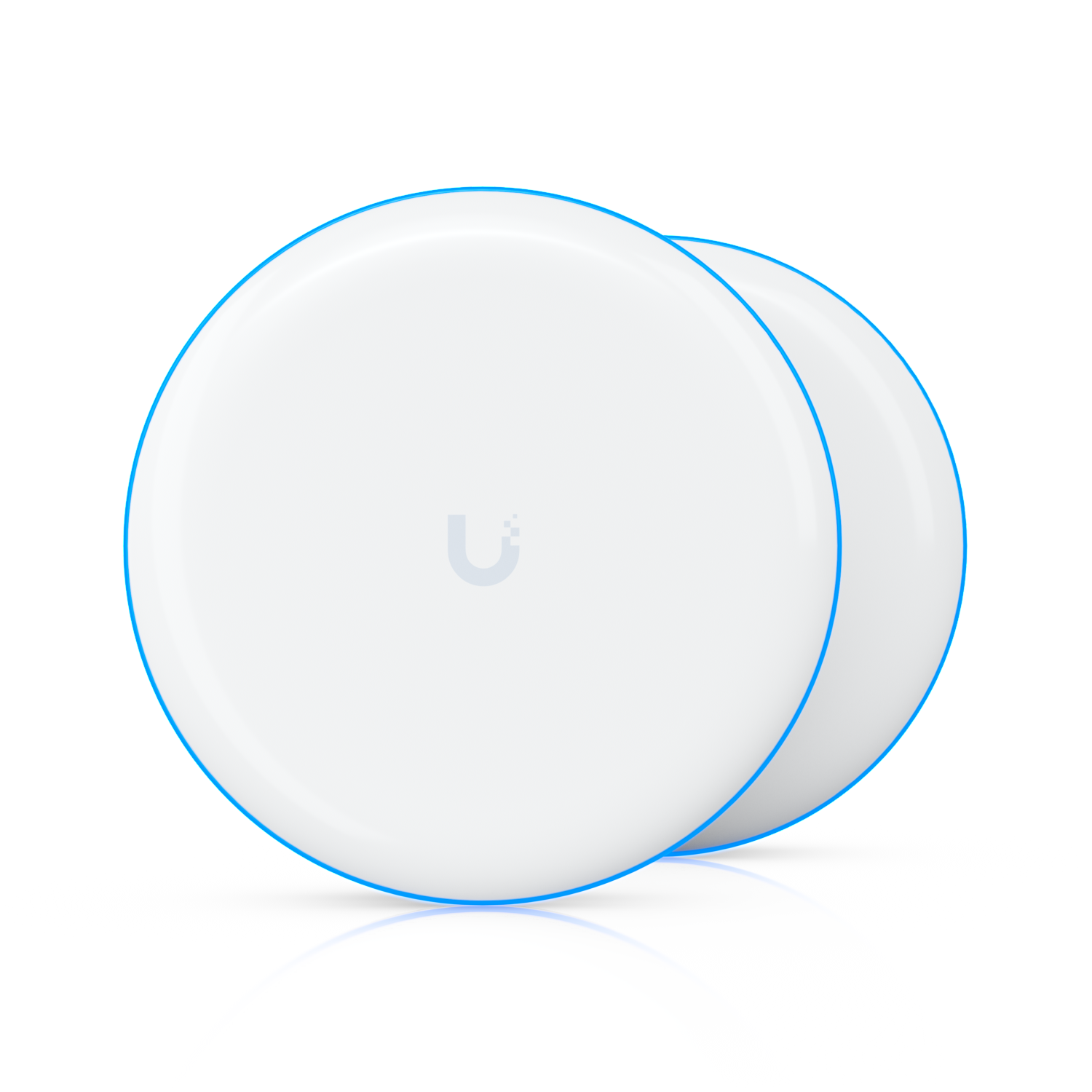
| Building-to-building, UniFi site | UniFi Building Bridge (UBB / UBB-XG) | 60 GHz, pre-paired, up to 500 m (UBB), 5 GHz backup (S6) |
| High-capacity 60 GHz PtP/PtMP | airFiber 60 / Wave series | Managed in UISP. Check the current datasheet for range. |
Plan the link before you climb
- Confirm line of sight. You need clear visual sight between the two ends.
- Clear the Fresnel zone. The signal spreads into a football-shaped zone between the antennas. Trees, roof edges or a wall beside the radio cut into it, weaken the signal, unbalance the chains and make capacity bounce around.
- Model it in UISP Design Center. Enter both locations, mounting heights and models (formerly ISP Design Center / Link Planner). Check the predicted signal and Fresnel ground clearance.
- Leave margin. Don't design right up to a radio's maximum range.
Bench configuration (airMAX / airOS 8)
Configure one radio at a time. Every airMAX radio ships at the same factory default IP. (S1)
- Factory reset. Hold Reset, power the radio on, and let go when the LEDs start flashing.
- Set your laptop. Static 192.168.1.100 / 255.255.255.0, no gateway, connected through the PoE injector's LAN port. (S1)
- Log in. Browse to https://192.168.1.20 and log in with the factory default ubnt / ubnt. airOS makes you set a new, strong password; keep it out of tickets. The Ubiquiti Device Discovery Tool or the UISP app can find radios on the wire for you. (S1)
- Update firmware. System → Firmware, upload the latest airOS for your exact model from ui.com/download. When upgrading remotely, start with the far end and work back toward the head end.
- Network tab. Network Mode Bridge, Management IP Static. Give each radio a unique management IP before it goes on the shared LAN. (S1)
- System tab. Name the device by IP and role (
.201-Station-Gate). Turn on airView, set time zone and NTP, and enter latitude, longitude and height to unlock the Fresnel and Map views. - Wireless tab. Apply the settings in the table below. (S1, S2)
- Save and power cycle. Click Save, then power cycle the radio once before the link's first use.
- Label it. Mark each radio with its IP, role and which end of the link it goes on.
| Switch/Jumper/Code | Setting | Effect |
|---|---|---|
| Access Point | On for the AP, Off for stations | Sets which end hosts the link (S1, S2) |
| PTP Mode | On at both PtP ends, Off on PtMP AP and stations | Optimizes a one-to-one link (S1, S2) |
| SSID | Must match on every radio | Stations find the AP |
| Security | WPA2-AES with a strong pre-shared key, same on every radio | Encrypts the link (S1) |
| Channel width | Start at 20 MHz (or 10); must match | Narrow is more robust; widen only for capacity |
| Frequency | Pick a clean frequency in airView; include it in station scan lists | Avoids interference |
| Country | Match the install location | Keeps power and channels legal |
| Auto Adjust Distance | On | Tunes timing to link length |
| Lock to AP MAC | Off | Replacing the AP won't strand every station |
PtMP: AP plus multiple stations
Set up the AP first, then each station, with the same SSID, key and channel width, and the next unused IP. If the network has a DHCP server, keep its pool clear of 192.168.1.20 and the radio management IPs. Raise airMAX Station Priority on a station that's starving for airtime. (S2)
UniFi Building Bridge (UBB)
- UBB units ship pre-paired. Plug the source unit into the LAN with DHCP and PoE, power the far unit from PoE only, aim them at each other, and adopt the pair in UniFi Network. (S5)
- Without a UniFi controller: triple-click Reset on one unit to make it the parent. It pairs with the other unit and enters alignment mode. Standalone mode keeps default credentials, has limited features, and needs a factory reset before adoption later. (S4)
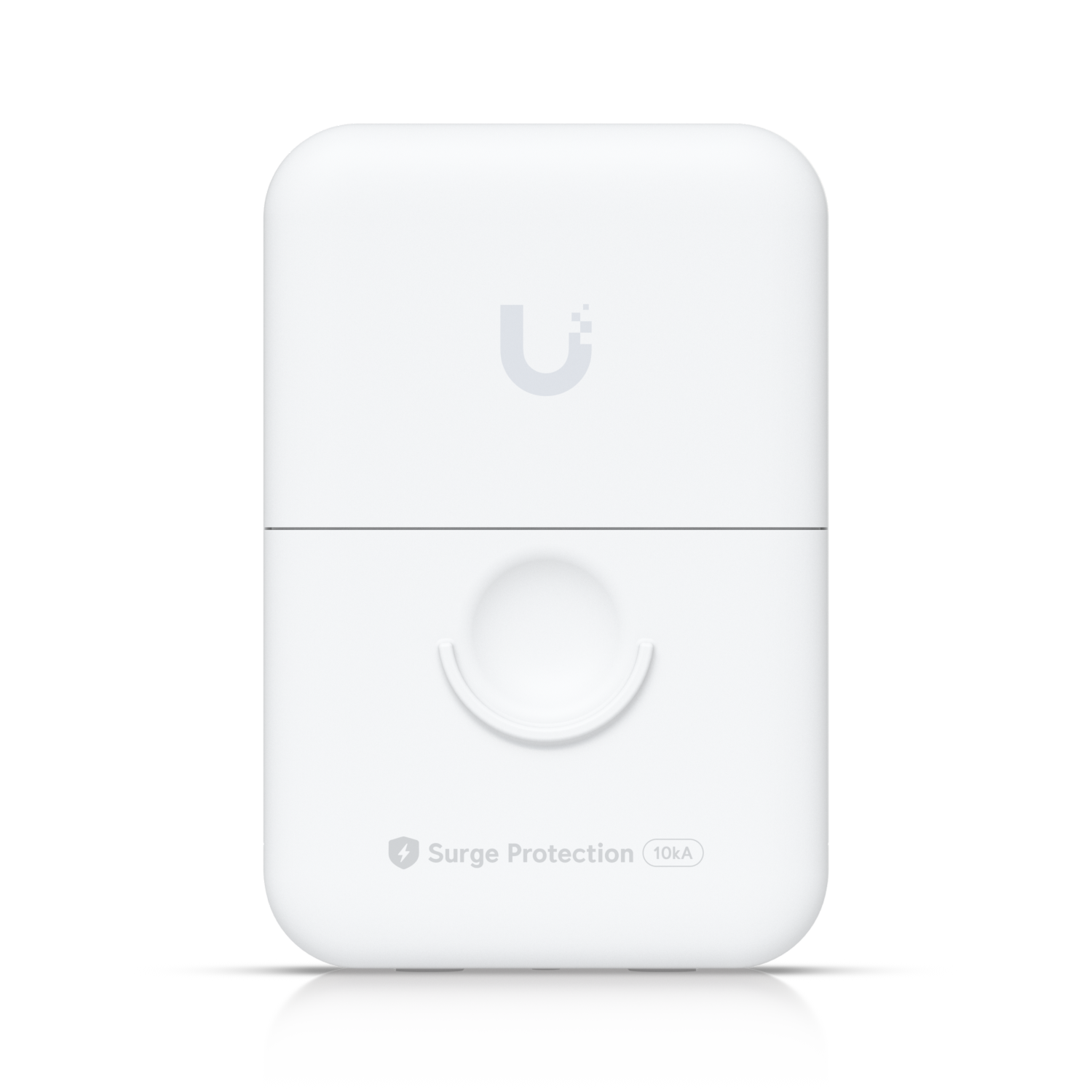
- Use shielded Cat5 or better with a drain wire, grounded through the PoE, and Ethernet surge protectors (ETH-SP-G2) at the radio and the building entry. (S5)
Mounting and aiming
- Mount level. Mount both ends level with the same polarization, using the bracket for vertical and horizontal angles.
- Use Antenna Align. Tools → Antenna Align in airOS has an audio indicator. Sweep the far end slowly left-right, then up-down, and lock at the peak.
- Tune one end at a time. Never adjust both ends together.
- UBB alignment. Turn on the Alignment Tool in UniFi Network. The LED turns green when aligned; if in range but red, move the unit up or down. (S5)
Verify the link
- Signal (RX) around -45 to -55 dBm is a solid target. For live camera video aim for -40 to -50 dBm, the most stable range for streaming in field use.
- Weaker than -70 dBm is poor. Stronger than -40 dBm shows red in airOS: too hot, so turn power down or aim slightly off.
- Chain 0 and Chain 1 within 5 dBm of each other (airOS shows red beyond that).
- Noise floor well below the signal (healthy SNR).
- Total peak throughput of all stations under about half of link capacity. Use airMagic or airView to compare channel widths.
- Run Tools → Speed Test between radios, then pull real camera streams.
- Dashboard Ethernet link shows 1000 Mbps-Full.
- Back up the config (System → Back Up Configuration). Change the IP before loading a backup onto another radio.
Changing frequency or width safely
- Use Test, not Save. Change the stations first and the AP last.
- Apply after reconnect. Wait for everything to reconnect, then Apply. If the link doesn't return, the test timer runs out and radios roll back on their own.
- Allow for DFS. DFS channels (roughly 5250–5730 MHz in the US) add about a 60-second radar check before the link comes up.
Troubleshooting
| Symptom | Likely cause | Fix |
|---|---|---|
| Chains differ by more than 5 dBm | Radio not level, or Fresnel zone blocked (roof edge or wall near the antenna) | Level and re-aim, or move it so the path is clear |
| Signal above -40 dBm, drops on close links (under ~200 ft) | Receiver overloaded | Lower TX power; at minimum, aim slightly off |
| Weak signal | Misaimed, not level, or Fresnel obstruction | Re-aim, raise the mount, trim trees |
| Capacity swings (300 → 100 → 300 Mbps) | Intermittent obstruction or interference | Try another frequency in airView, then clear the path |
| No traffic, Ethernet shows unplugged | Bad cable, port or PoE, or failed device in the enclosure | Re-terminate, try the second port, power cycle |
| Can't reach radio after IP change | Laptop on the wrong subnet | Move the laptop to the new subnet, or factory reset on site |
| UBB won't adopt | Units not linked yet | Power both, get them talking, then adopt; factory reset both if needed |
Tools and parts list
- Laptop with an Ethernet port, plus the Ubiquiti Device Discovery Tool or UISP app
- PoE injectors that match the radio's PoE type
- Outdoor-rated shielded Cat6 (UISP Cable Pro or similar), shielded RJ45 connectors and crimper
- Ethernet surge protectors (ETH-SP-G2) and ground wire
- Pole or J-mounts, U-bolts, 8 mm socket or driver, level
- Weatherproof tape or boots, UV zip ties, labels
- Compass or phone, binoculars for line of sight, ladder and fall protection
Sources
- Ubiquiti Help Center: airMAX, Configure a Point-to-Point Link (Layer 2, Transparent Bridge)help.ui.com · pulled Oct 24, 2026
- Ubiquiti Help Center: airMAX, Configure a PtMP ISP-Style Access Pointhelp.ui.com · pulled Oct 24, 2026
- UISP Help Center: Indirect PtP (Repeater-Style Bridge)help.uisp.com · pulled Oct 24, 2026
- Ubiquiti Help Center: Standalone Pairing for Bridge Deviceshelp.ui.com · pulled Oct 24, 2026
- UniFi Building Bridge (UBB) Quick Start Guidedl.ui.com · pulled Oct 24, 2026
- UniFi Building Bridge (UBB) Datasheetdl.ui.com · pulled Oct 24, 2026
FAQs
What is the default IP and login for Ubiquiti airMAX radios?
192.168.1.20 with ubnt / ubnt. airOS 8 forces a password change at first login. (S1)
Should PTP Mode be on or off?
On at both ends of a one-to-one link. Off on the AP and all stations in a multipoint setup. (S1, S2)
What signal strength should a Ubiquiti link have?
Around -45 to -55 dBm, with the chains within 5 dBm of each other. Weaker than -70 dBm is poor, and stronger than -40 dBm is too hot.
What channel width should I use?
Start at 20 MHz or narrower, and widen it only if you need the capacity. Both ends must match.
Can I set up a UniFi Building Bridge without a controller?
Yes. Triple-click Reset on one unit to pair them in standalone mode, with limited features and default credentials. (S4)
Why is my link dropping when the signal looks great?
The signal is probably too strong (above -40 dBm) or the chains are unbalanced. Lower the power or re-aim.
Did this page help you?
Thanks for the feedback.